
Strong with text
GPT Image 2: Complex Prompts and Legible Text
GPT Image 2 is not connected on PixBloom at the moment. Read what it does, run the same prompts on our standard engine below, or leave your email to be told if we add it.
GPT Image 2 is not connected on PixBloom yet
This page explains what GPT Image 2 does and shows prompts written for it. PixBloom currently generates with its own standard engine, which handles the same prompts; try one below. Want GPT Image 2 itself here? Leave your email — if enough people ask, we connect it and tell you first.
- 138 real examples
- 12 styles
- ~30 sec per image
- HD no watermark

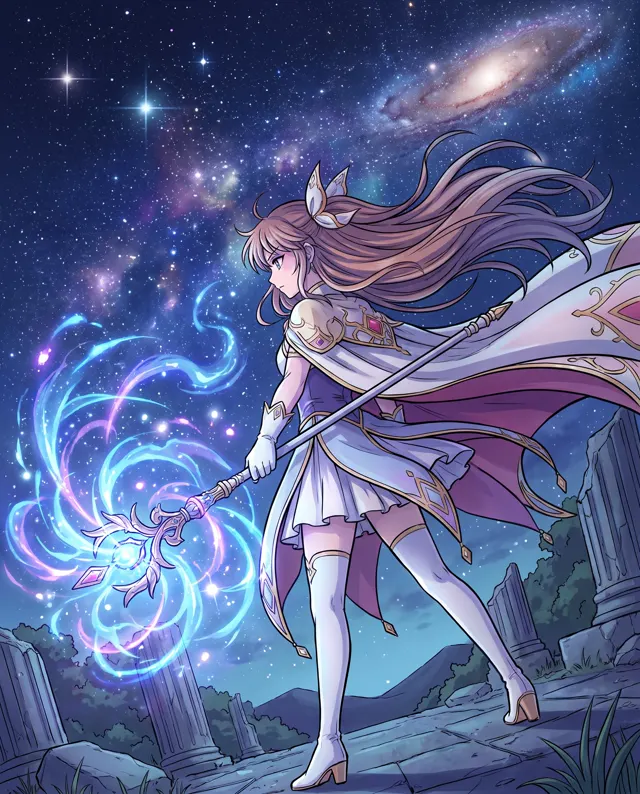
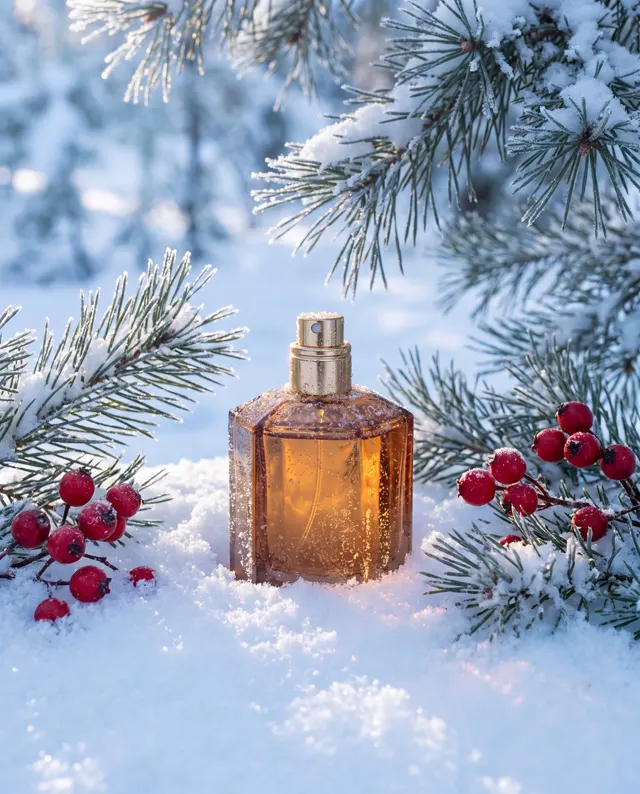
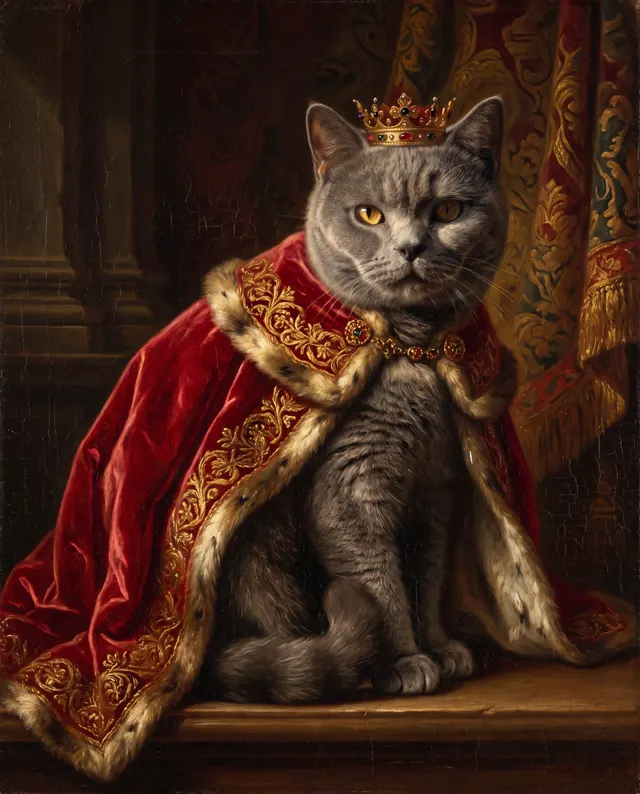
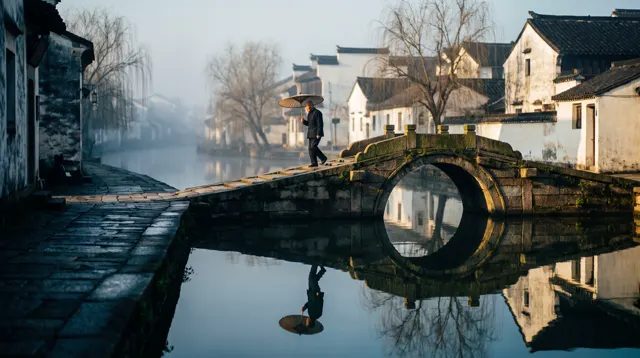
Prompt ideas for GPT Image 2
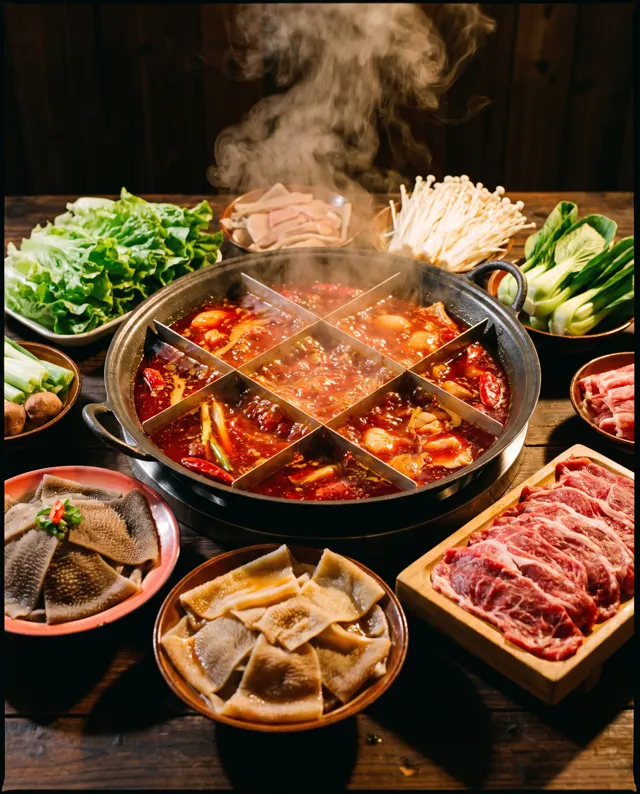
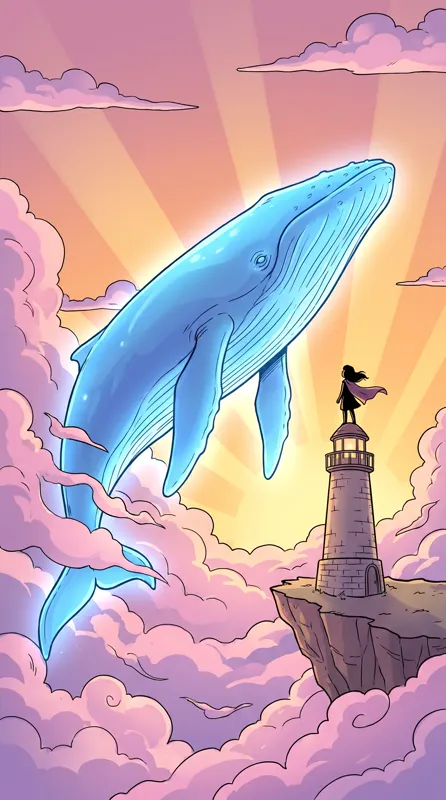
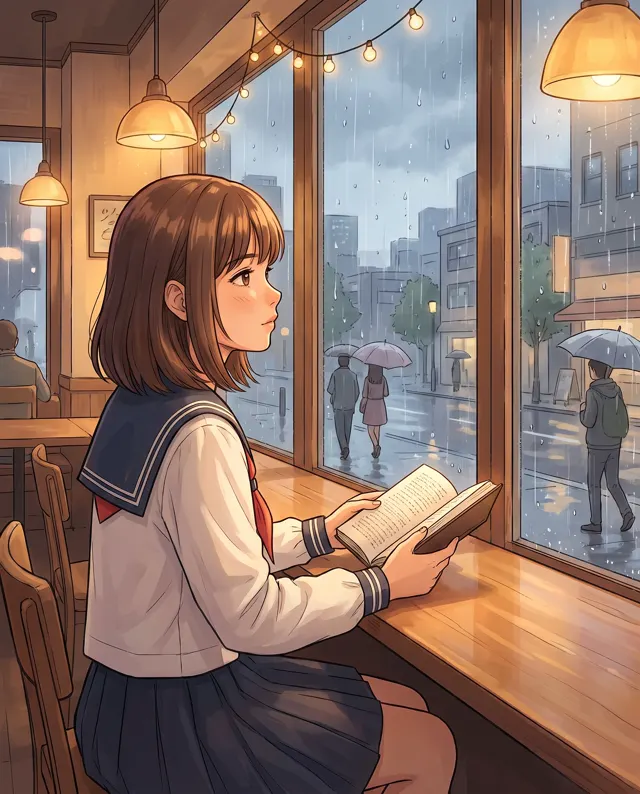
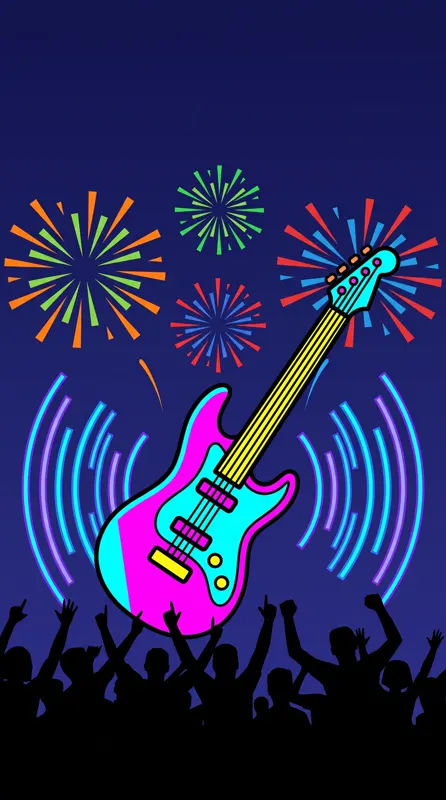
Made with our standard model. Open one, copy the prompt and run it with this model to compare.


What is GPT Image 2?
GPT Image 2 is OpenAI’s image generation model. Its strengths are following complex instructions and rendering text inside images: a prompt with several objects, positions and copy requirements tends to come out more complete, and poster headlines, infographic labels, signs and packaging text are more legible. On our site you don’t need a ChatGPT account — just choose GPT Image 2 in the generator. It costs 6 credits per image, accepts up to four reference images and offers 1:1, 4:5, 3:4, 9:16 and 16:9, at up to 4K. AI text can still contain errors, so proofread before you publish. We’re an independent site and aren’t affiliated with OpenAI.
Start generating in HD
GPT Image 2 use cases
Posters with headlines
For event posters, promos and covers, put the copy in the prompt and get the visual and title together, with less layout work.
Infographics and explainers
Processes, checklists and comparisons that need icons with short labels make good drafts and social explainers.
Signs and packaging concepts
Storefronts, menus, bottle labels and boxes that need a shop or product name come out easier to read.
Busy, multi-object scenes
Prompts with clear positions — “a cat on the left, a plant on the right, three books on the table” — are easier to get laid out as asked.
How to use GPT Image 2
Choose GPT Image 2
GPT Image 2 and 1:1 are preselected. Switch to 3:4, 9:16 or 16:9 for portrait or landscape images.
Describe the image and the text
Describe the scene, then put any words in quotes with a position: “headline ‘SUMMER WAVE’ at the top.”
Generate and proofread
Results usually take tens of seconds. Check the text letter by letter, then download the up to 4K original.
GPT Image 2 prompt tips
Quote the exact words
Put required text in quotes with position, size and type feel: “small text at the bottom: ‘8.18 – 8.20’, thin sans-serif.”
Shorter copy is safer
Headlines and short labels are the most reliable; long paragraphs often go wrong. Set body copy in a design tool afterward.
List requirements in order
For complex images, go “scene → subject → positions → text → style”, one sentence each. It’s easier to follow than a pile of adjectives.
Double-check non-Latin text
Chinese and other complex scripts can come out with wrong or missing strokes. Zoom in and check important copy character by character.
GPT Image 2 FAQ
Related tools
GPT Image 2 pricing: pay per image, no subscription
Taster pack · 15 HD images
150 credits that never expire. No subscription, one per account.
Try GPT Image 2 on your next poster
Describe the scene and the copy, and get sharp 4K results in tens of seconds.