
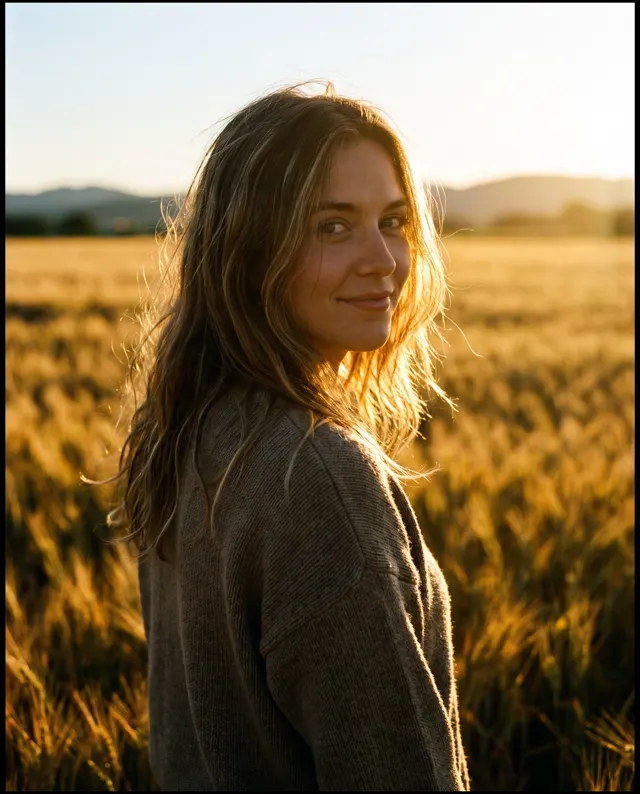
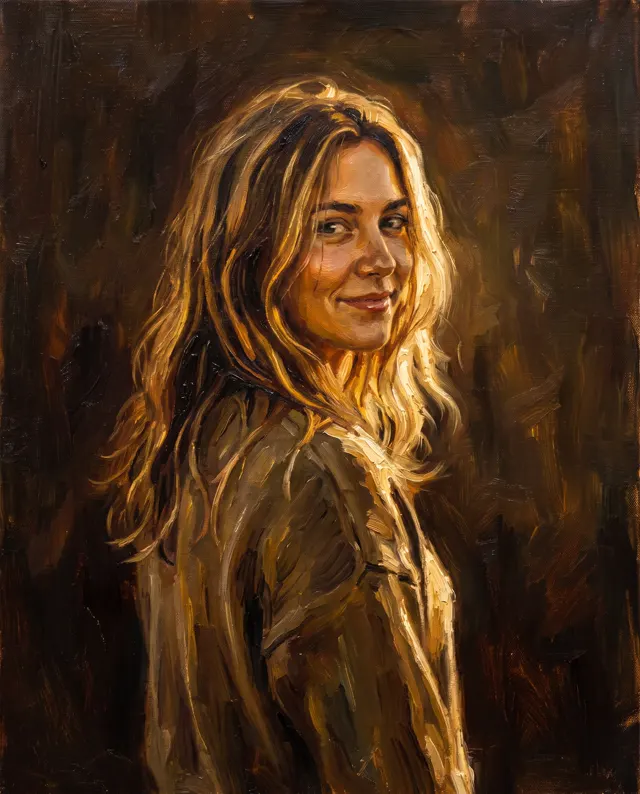
Old photos, repaired and colorized
AI Photo Restoration: Repair, Sharpen and Colorize Old Photos
Upload a scan or phone photo of an old, faded, scratched or black-and-white photo. The AI photo restoration preset (Photoreal style, 4:5) returns a cleaned, sharpened, naturally colorized HD photo in about 30 seconds, no watermark, with the people, poses and composition kept.
Upload a product or character and the AI places it in a new scene (up to 4)
Sign in to upload references- 4 real examples
- 12 styles
- ~30 sec per image
- HD no watermark

Reference → Result
Left: the uploaded reference. Right: the new scene from one sentence, with the subject’s look kept.
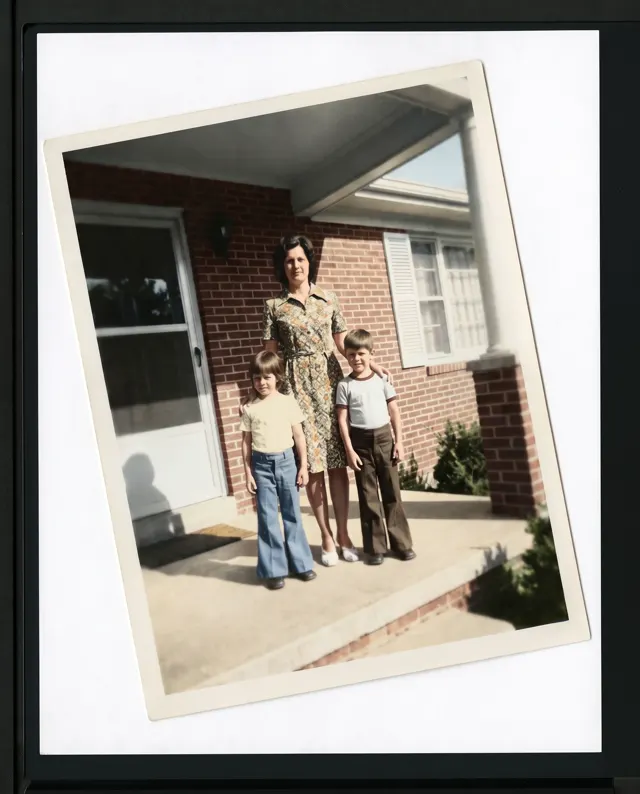
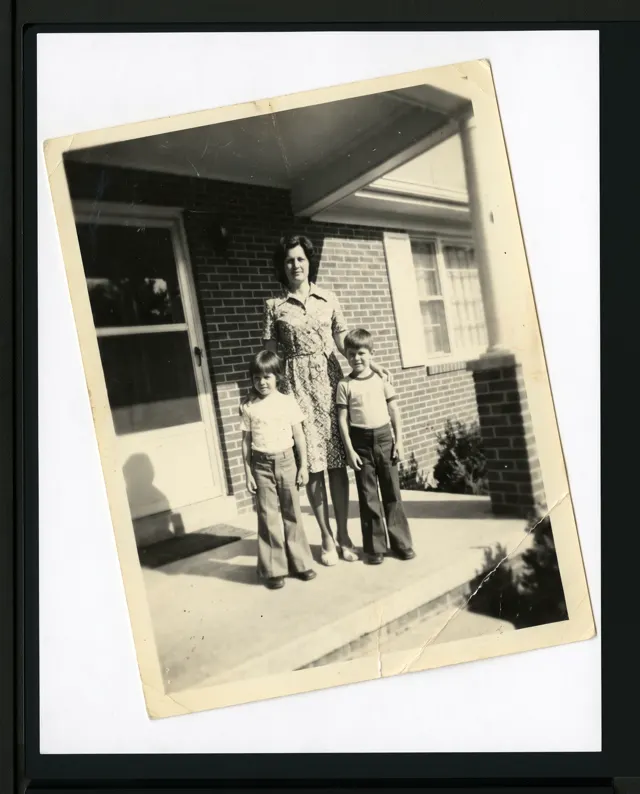
AI Photo Restoration examples
Every image comes with its exact prompt and settings. Hit “Try this prompt” to load it into the generator, then change a few words to make it yours.
AI Photo Restoration inspiration: public-domain originals
Real cards, prints and photographs from a century or more ago, all in the public domain and sourced from museum open-access collections and Wikimedia Commons. See what makes each one work, then use the prompt to make your own new image.
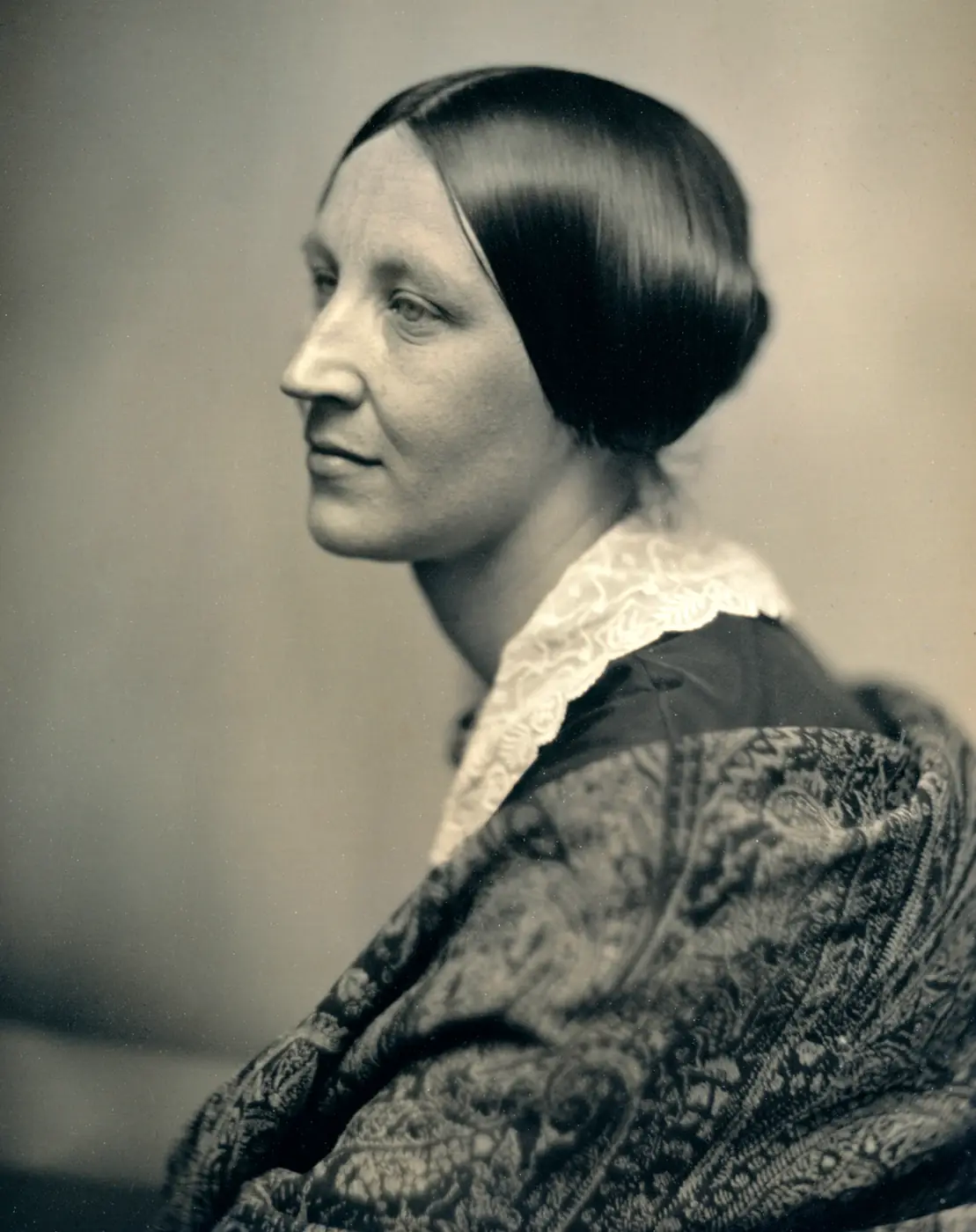
Unidentified Woman (daguerreotype) · ca. 1850
A daguerreotype profile from a leading Boston studio around 1850: beautifully graded but only a brownish monochrome. Well-kept old photos like this are the easiest to colorize.
Reproduce this old photo exactly and colorize it: keep the face, hair, clothing and composition exactly the same, clean up small spots, natural color with realistic skin tones, sharp and high-resolution
Public-domain original · Public domain · Southworth & Hawes studio, Boston (via Wikimedia Commons) · Source
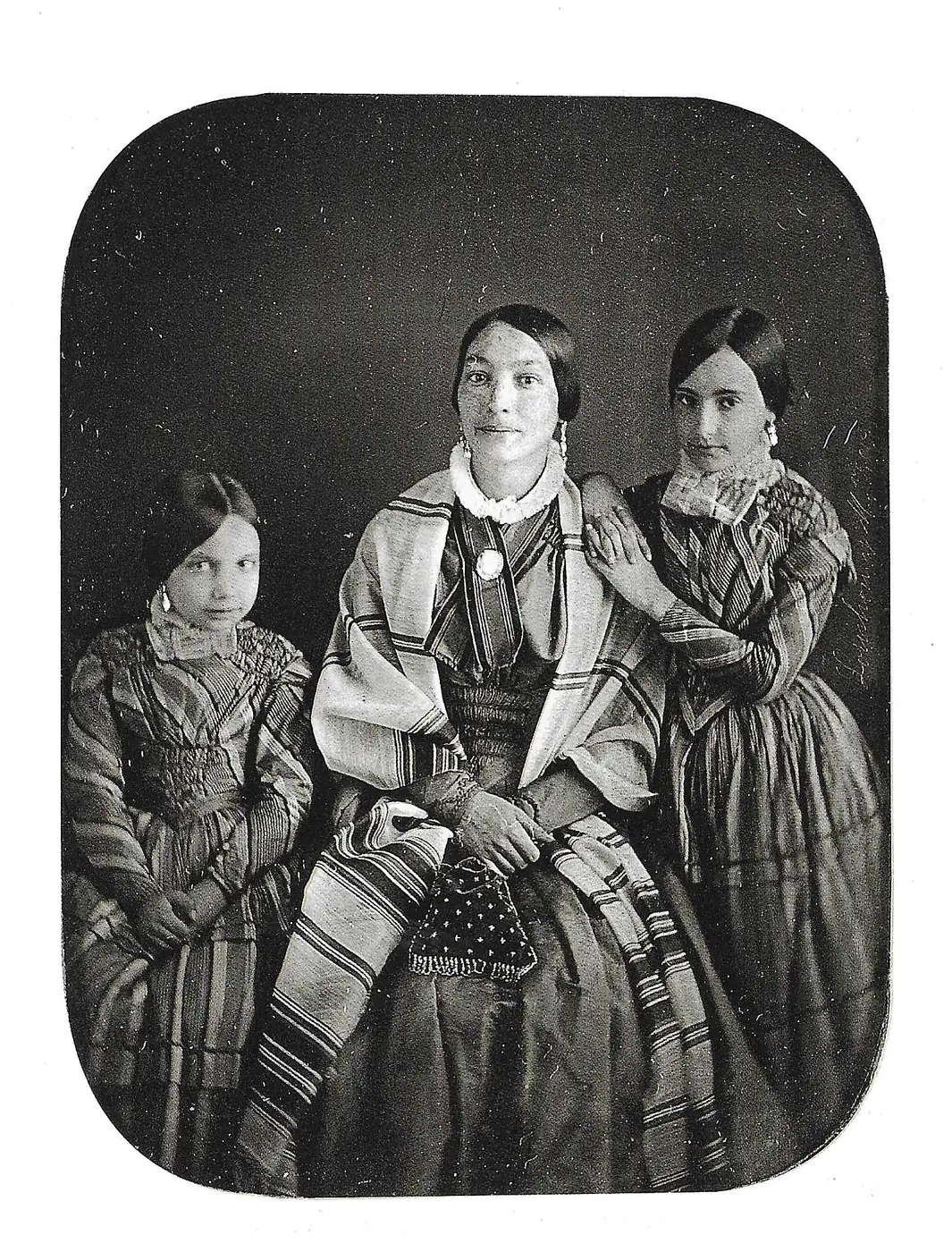
Lorichon Daguerreotype · ca. 1850
A three-person daguerreotype with wear outside the oval mat and soft faces. With group photos, stress “keep every person exactly the same”, or the AI may redraw faces.
Restore this low-contrast old portrait: improve sharpness and contrast, repair missing areas, keep the original composition, lighting and expression, do not change the facial features, output a high-resolution black-and-white version
Public-domain original · Public domain · Daguerreotype (via Wikimedia Commons) · Source
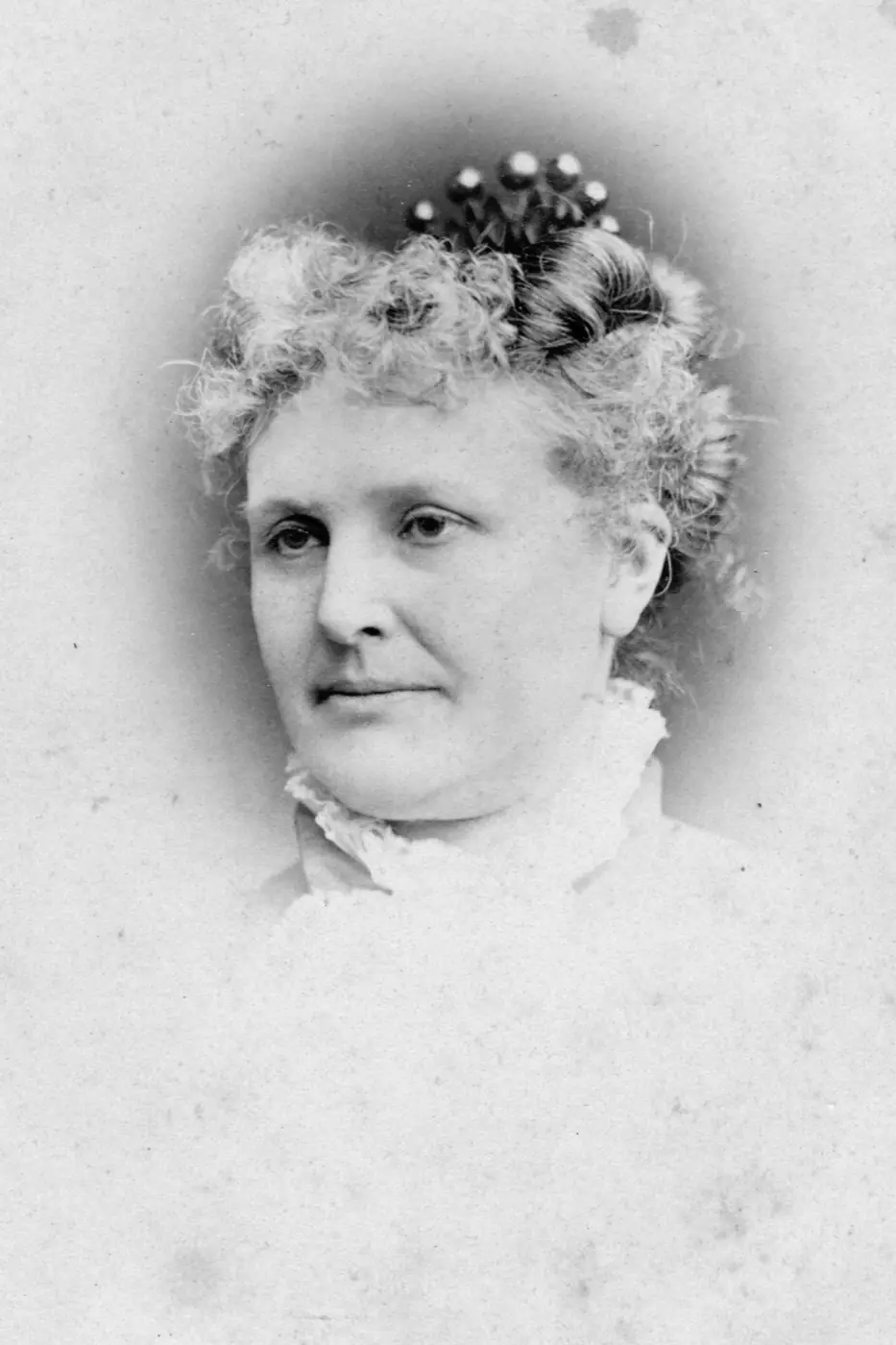
Unidentified Woman (cabinet card) · 19th century
19th-century cabinet cards tend to be yellowed, faded and worn at the mount; restore, then colorize, for a family album or keepsake.
Restore this yellowed, faded photo into a clean, sharp color image, remove yellow stains and creases, keep the pose, clothing and background unchanged, natural restrained color like a period hand-tinted photograph
Public-domain original · Public domain · Cabinet card photograph (via Wikimedia Commons) · Source
What is AI photo restoration?
AI photo restoration takes an old photo that has faded, yellowed, cracked or never had color and produces a clean, sharp, naturally colorized version of it. Families digitizing a shoebox of prints use it to bring an album back; people preparing a memorial or anniversary print use it to get a photo that holds up at frame size; others just want an old photo that looks good in a social post. You upload a scan or phone photo of the original as the reference, add a line about what you know, and in about 30 seconds the AI photo restoration returns a high-resolution photo with the same people, poses and composition, and no watermark. Be clear about what it is: the engine redraws the photo guided by your original, so faces come out close but not identical. That is fine for sharing and keepsakes. It is not fine for ID documents, legal evidence or anything that must be a true likeness. Very blurry or tiny faces may be reinvented rather than recovered, and the colors are plausible guesses, not a record of the day. AI photo restoration works best from a flat, high-resolution scan, and you should compare every restoration with the original before you print it. Each AI photo restoration costs 10 credits, failed images are refunded, your photos stay private and can be deleted, and paid accounts may use the restored photo commercially.
Start generating in HD
AI Photo Restoration use cases
Family albums, digitized
Scanning a box of prints is only half the job, because half of them come out faded or scratched. Run each scan through AI photo restoration and the album becomes a set of clean, colorized photos you can send to relatives, print again or keep as a digital backup of the photo collection.
Memorial and anniversary prints
A single old photo often has to carry a memorial service, a golden-anniversary slideshow or a framed gift. AI photo restoration gives you a sharper, colorized, high-resolution version of that photo, large enough for a frame-size print, with the person’s pose and expression kept.
Then-and-now social posts
Before-and-after pairs of an old photo get shared more than almost anything else on a family timeline. Restore the photo, post it beside the original scan and tell the story. AI photo restoration takes about 30 seconds per photo, so a whole thread of restorations is one evening’s work.
Colorizing black-and-white photos
Black-and-white photo colorization is part of the same job. Describe what you know, such as the color of a uniform, a car or a dress, and AI photo restoration adds natural tones guided by those notes. Treat the colors in the restored photo as a plausible reconstruction, not a record.
How to use AI Photo Restoration
Upload the old photo
Scan the photo at the highest resolution your scanner offers, or photograph it under even light with no glare and the whole print in frame. Upload it as the reference; the AI photo restoration starts from that image and keeps its people and composition.
Describe what you know
Add a short note: the year, the setting, known colors (“the dress was blue”, “taken in 1978”) and whether you want the photo colorized. Photoreal style and 4:5 are preset; switch to 1:1 if the original photo is square.
Generate, compare, download
Each photo restoration costs 10 credits and takes about 30 seconds; failed images are refunded automatically. Compare the restoration with the original, then download the HD photo with no watermark. Results stay private in My images and can be deleted.
AI Photo Restoration prompt tips
Scan at the highest resolution
More pixels in the reference means more real detail for the restoration to keep. Use 600 dpi or higher for small prints, and turn off the scanner software’s auto-enhance and sharpening; those add artifacts that the AI photo restoration then treats as part of the photo.
Flatten creases, avoid glare
If you photograph the print instead of scanning it, press it flat under a book for an hour, shoot in even daylight away from windows and lamps, and keep the whole photo in frame with a little margin. Glare and cropped edges confuse the restoration.
Tell it the colors you know
Colorization is a guess unless you anchor it. Write what you remember: “navy school uniform”, “red brick house”, “the car was pale green”. Photo restoration follows those facts and fills the rest with plausible natural tones, so one line of facts beats a list of adjectives.
Keep faces as they are
Ask for “keep every face exactly as in the original” and avoid words like “beautify” or “younger”. AI photo restoration keeps likeness as closely as it can, but tiny or blurry faces may be reinvented, so a photo with one or two people restores more faithfully than a crowd.
AI Photo Restoration FAQ
Related tools
AI Photo Restoration pricing: pay per image, no subscription
Taster pack · 15 HD images
150 credits that never expire. No subscription, one per account.
Start your first AI photo restoration
Upload a scan of the faded, scratched or black-and-white photo, add a line about what you know, and get a clean, naturally colorized HD photo in about 30 seconds, for 10 credits, with failed images refunded.