
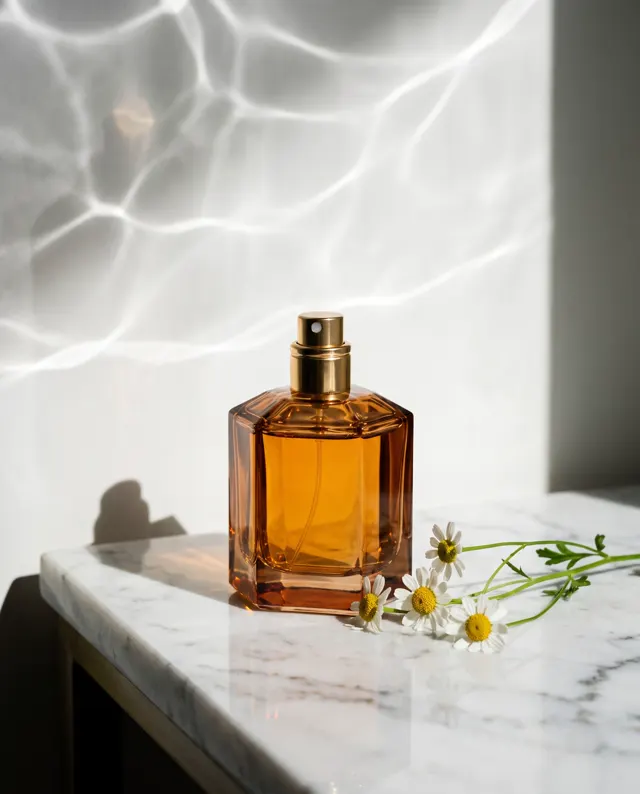
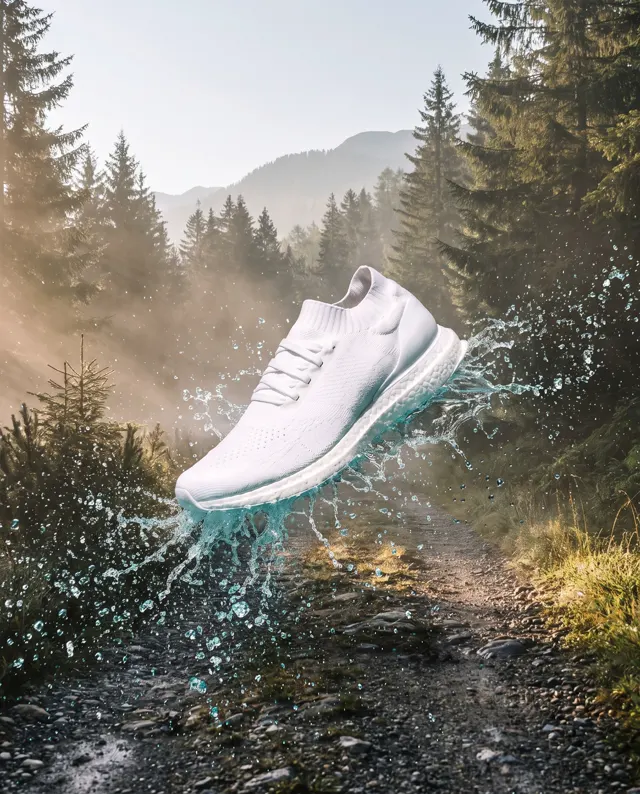
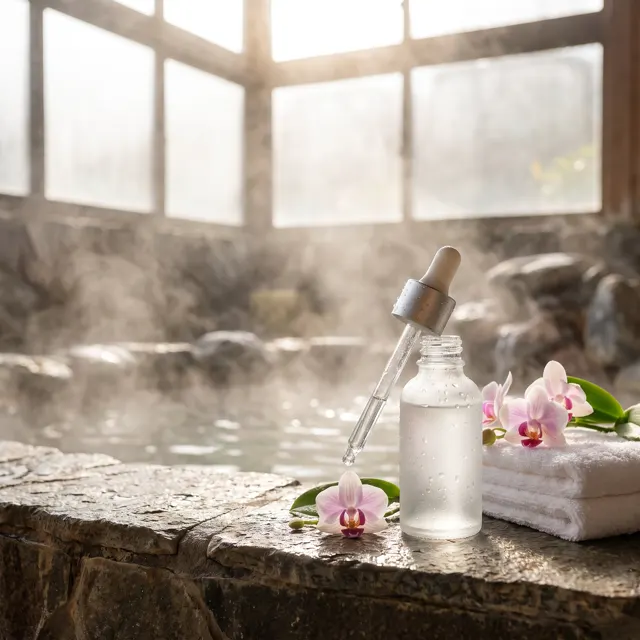

Keep the subject, change the scene
Image to Image AI: Same Subject, New Scene
Upload 1–4 reference photos of a product, character or pet, describe where it should be, and the AI places that same subject into the new scene — still looking like itself.
Upload a product or character and the AI places it in a new scene (up to 4)
Sign in to upload references- 17 real examples
- 12 styles
- ~30 sec per image
- 4K output
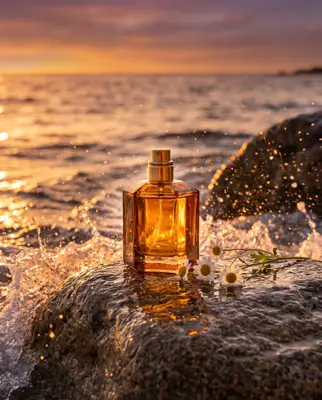
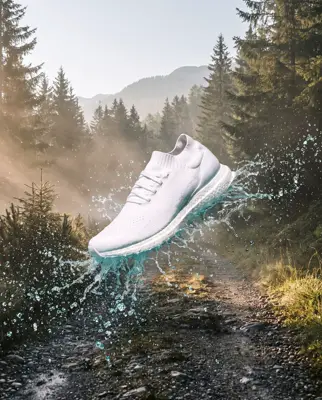
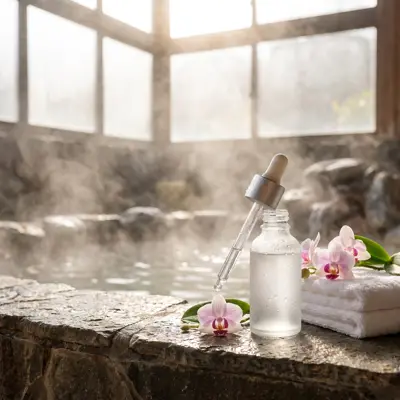

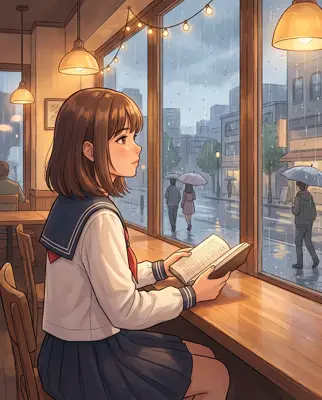

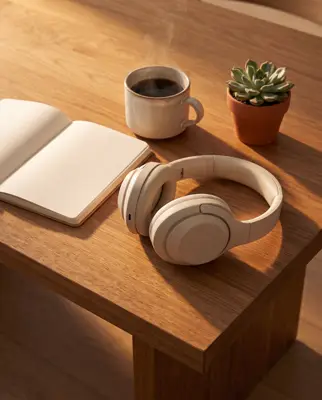
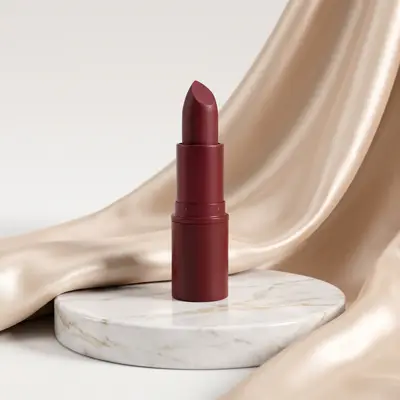
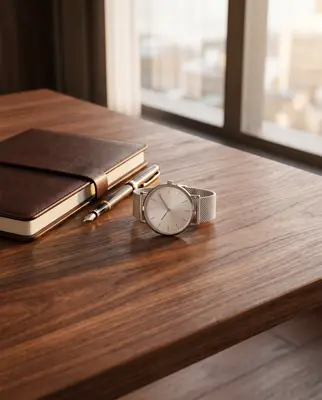
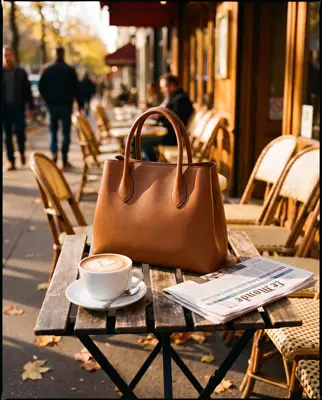
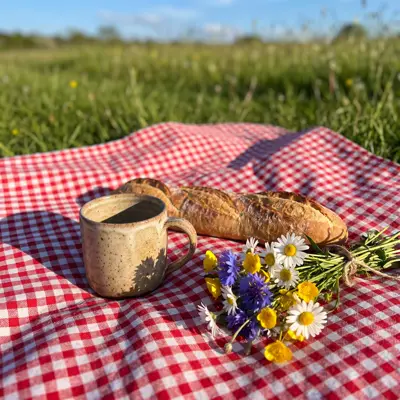
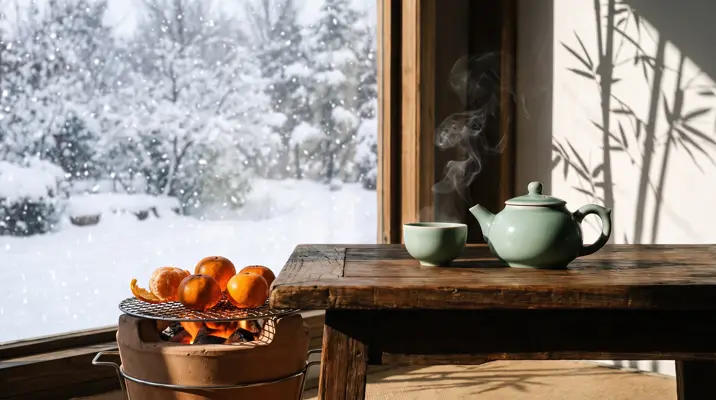
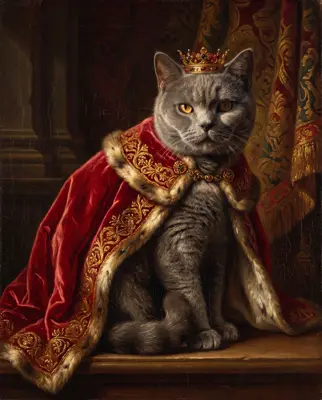
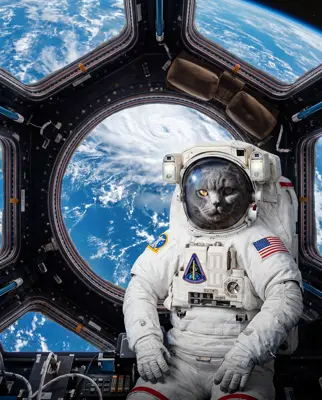

Reference → Result
Left: the uploaded reference. Right: the new scene from one sentence, with the subject’s look kept.
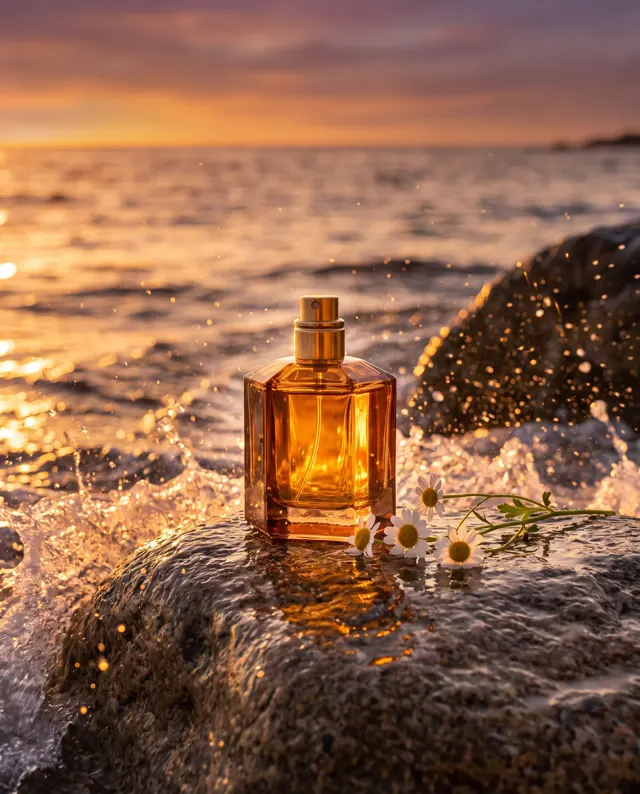
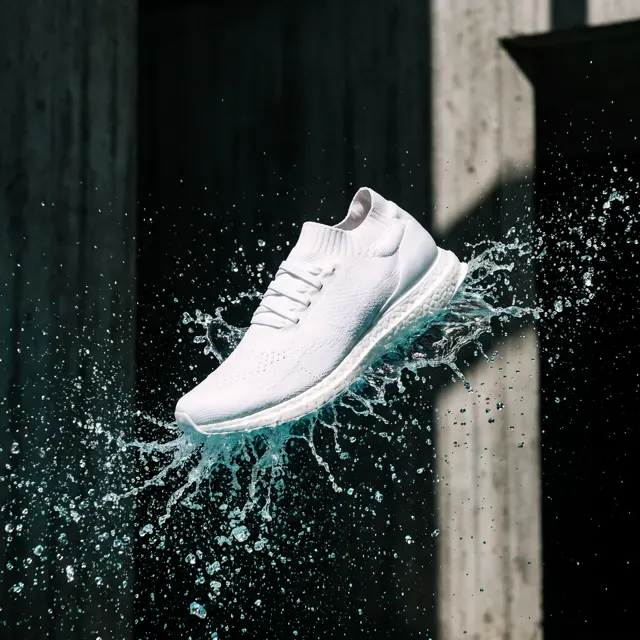
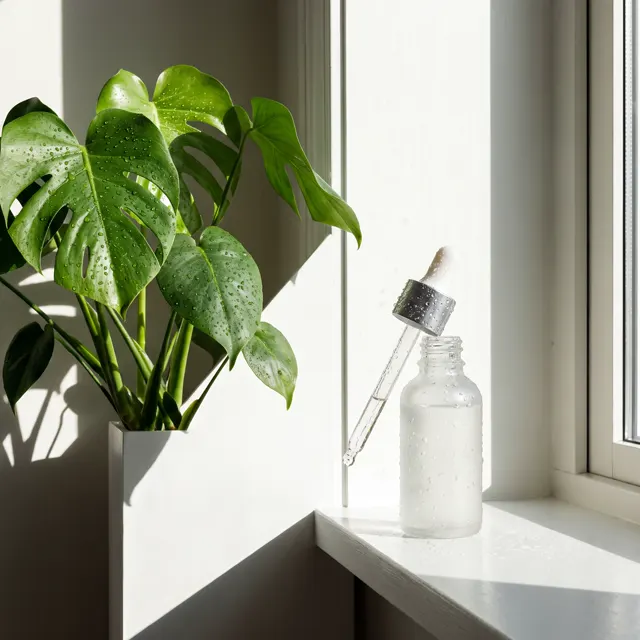
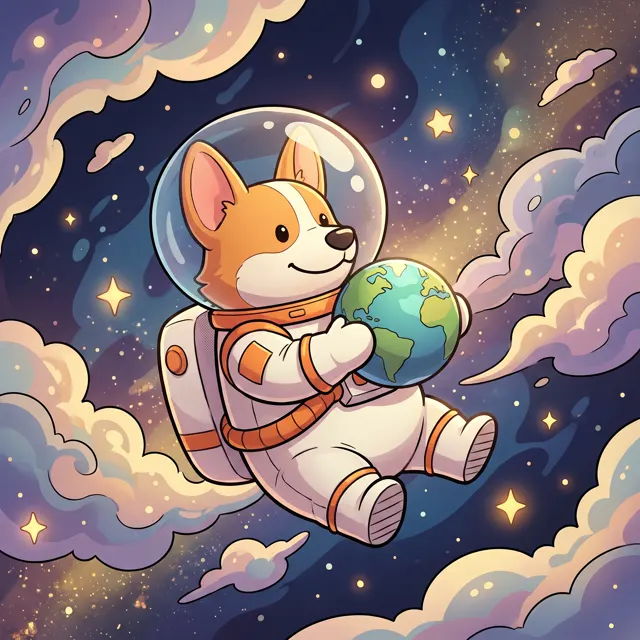
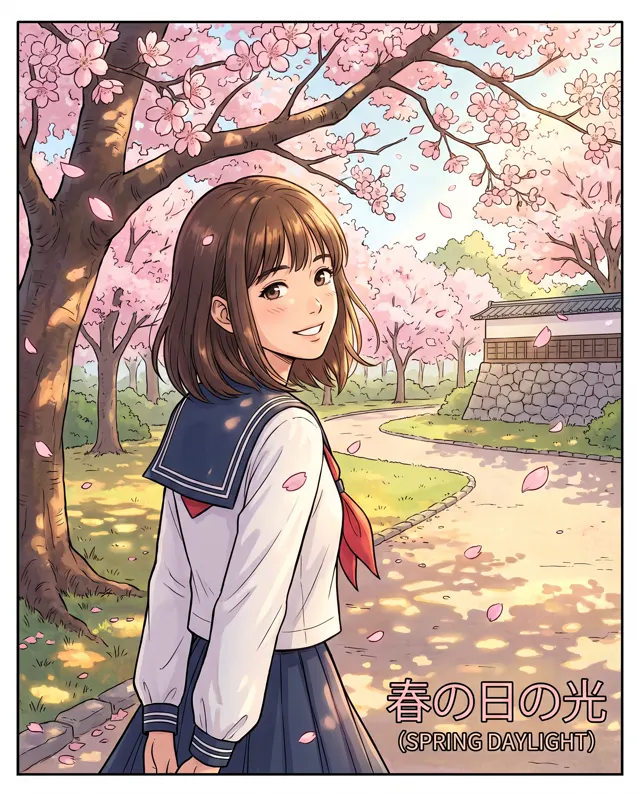
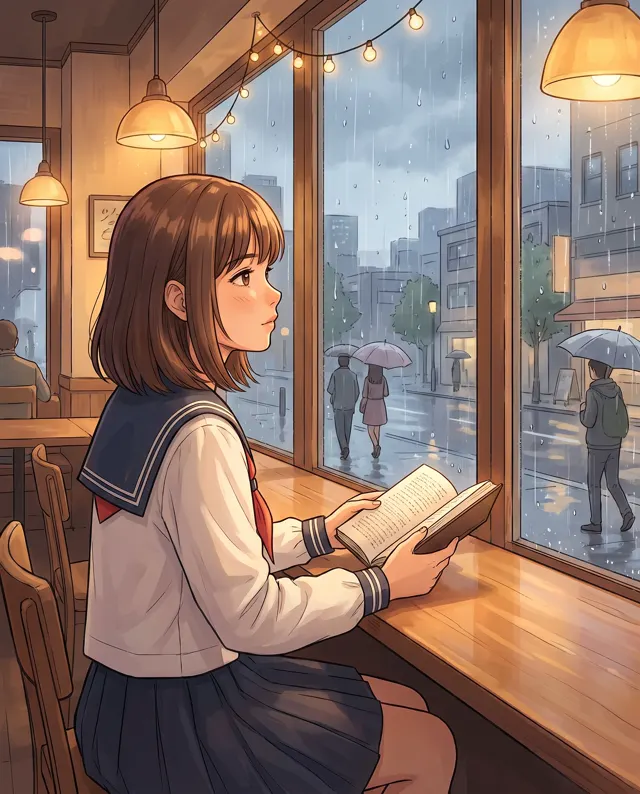
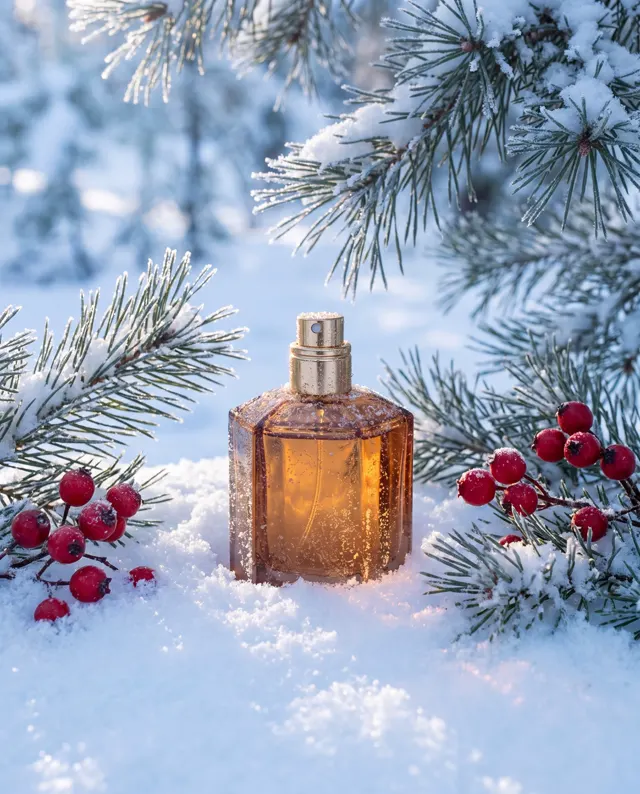
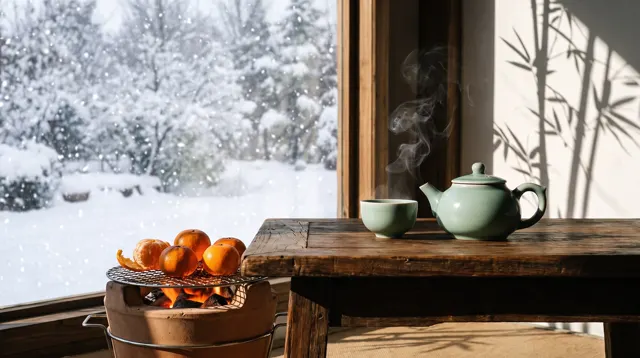
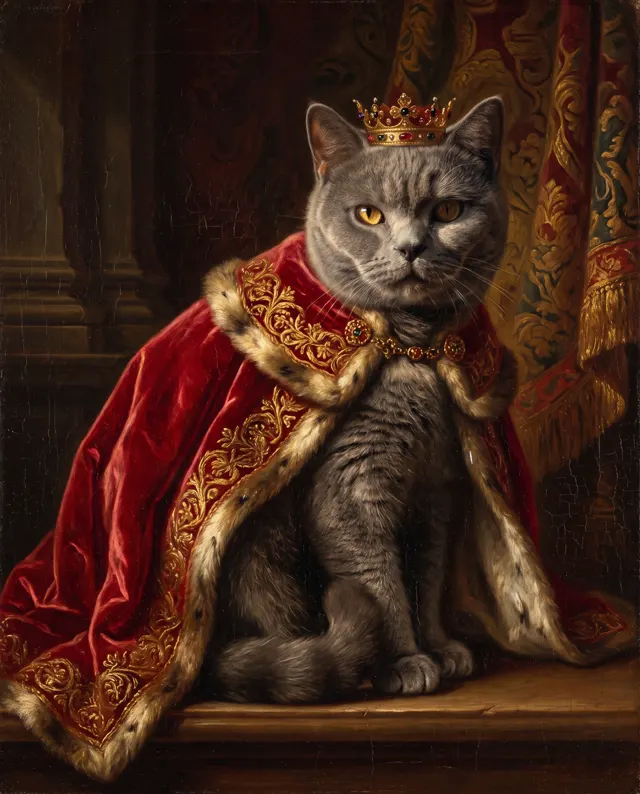
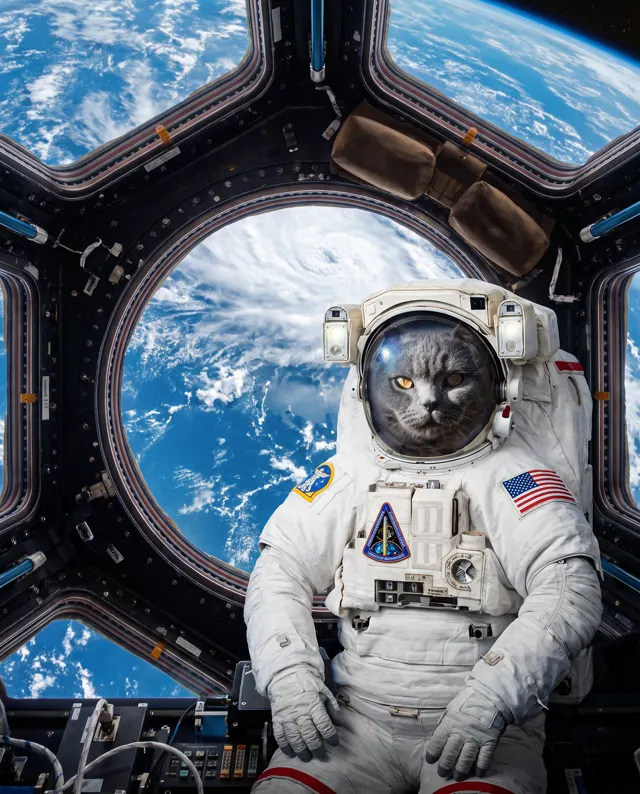
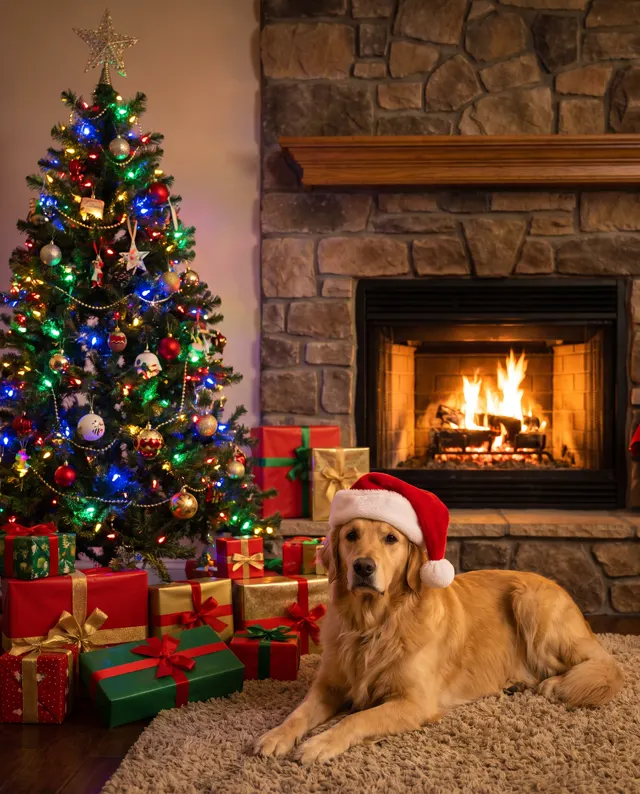
Real images made with this tool
Every image comes with its exact prompt and settings. Hit “Try this prompt” to load it into the generator, then change a few words to make it yours.
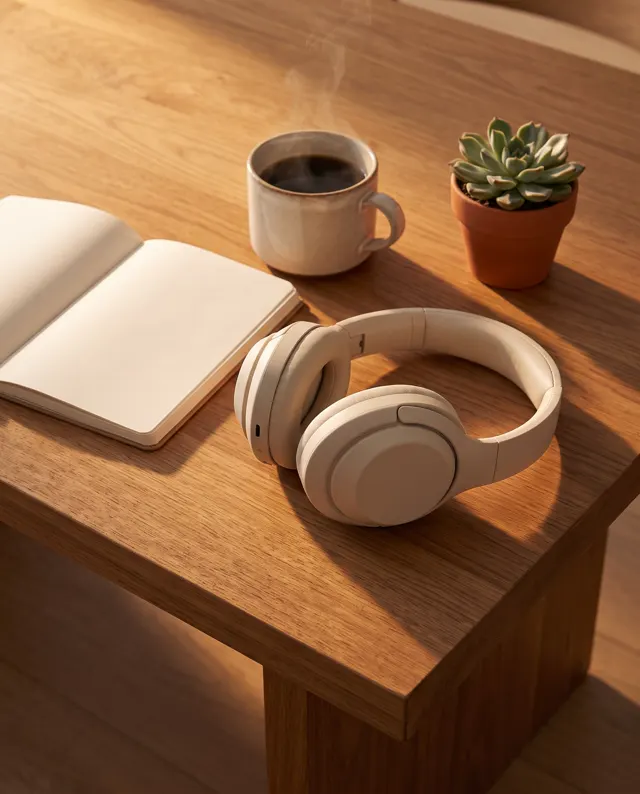
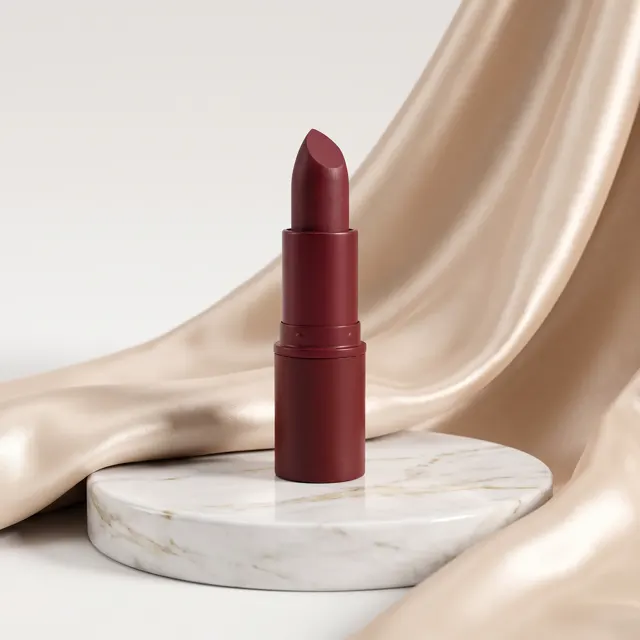
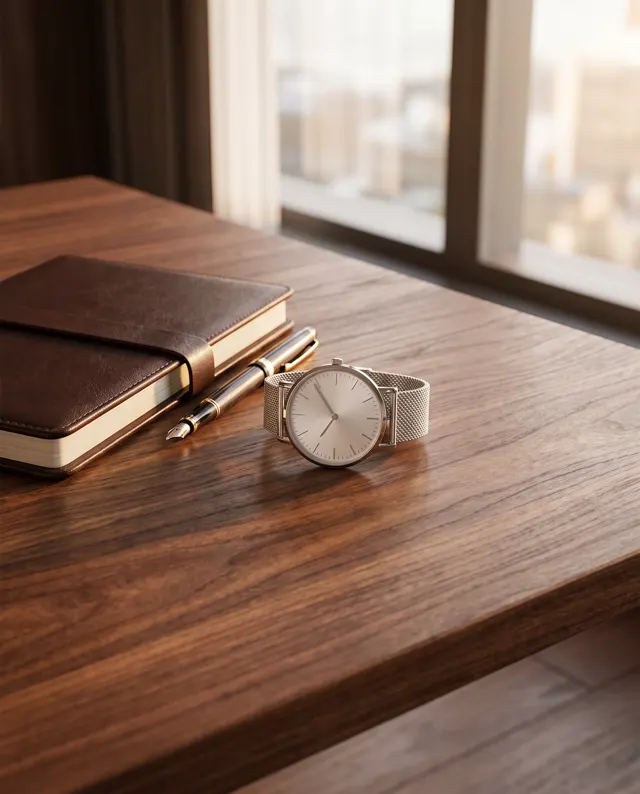
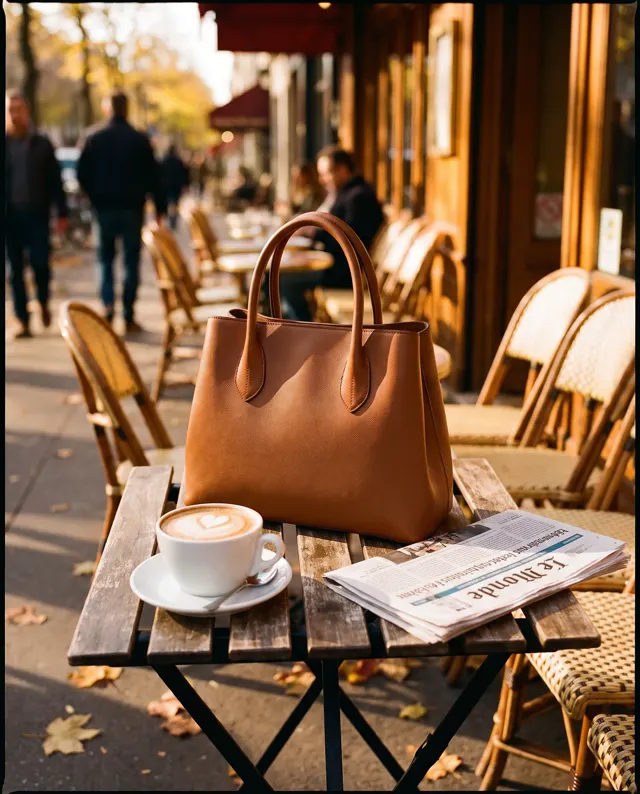
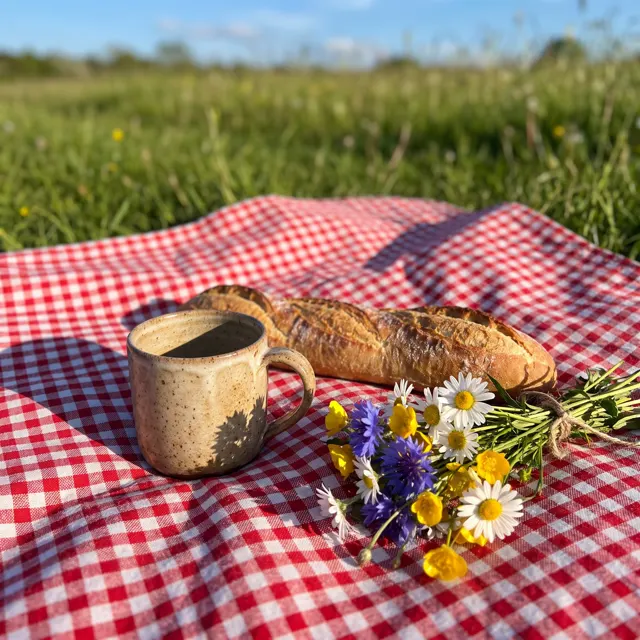
What does image to image AI do here?
On this page, image to image means subject reference. You upload up to four photos of one subject — a product, a character or a pet — then describe a new scene in words. The AI places that subject into a new image and keeps its look as closely as it can. The amber perfume bottle in our examples was moved from a marble tabletop to a sunset beach this way. Two things it is not: it isn’t inpainting, so you can’t repaint one area of an existing photo, and it isn’t whole-photo style transfer. When references are attached, the image-type setting is ignored and the overall look comes from your prompt, so write “studio lighting” or “film grain” if that’s what you want. References work best when they’re sharp, well lit and centered.
Start generating free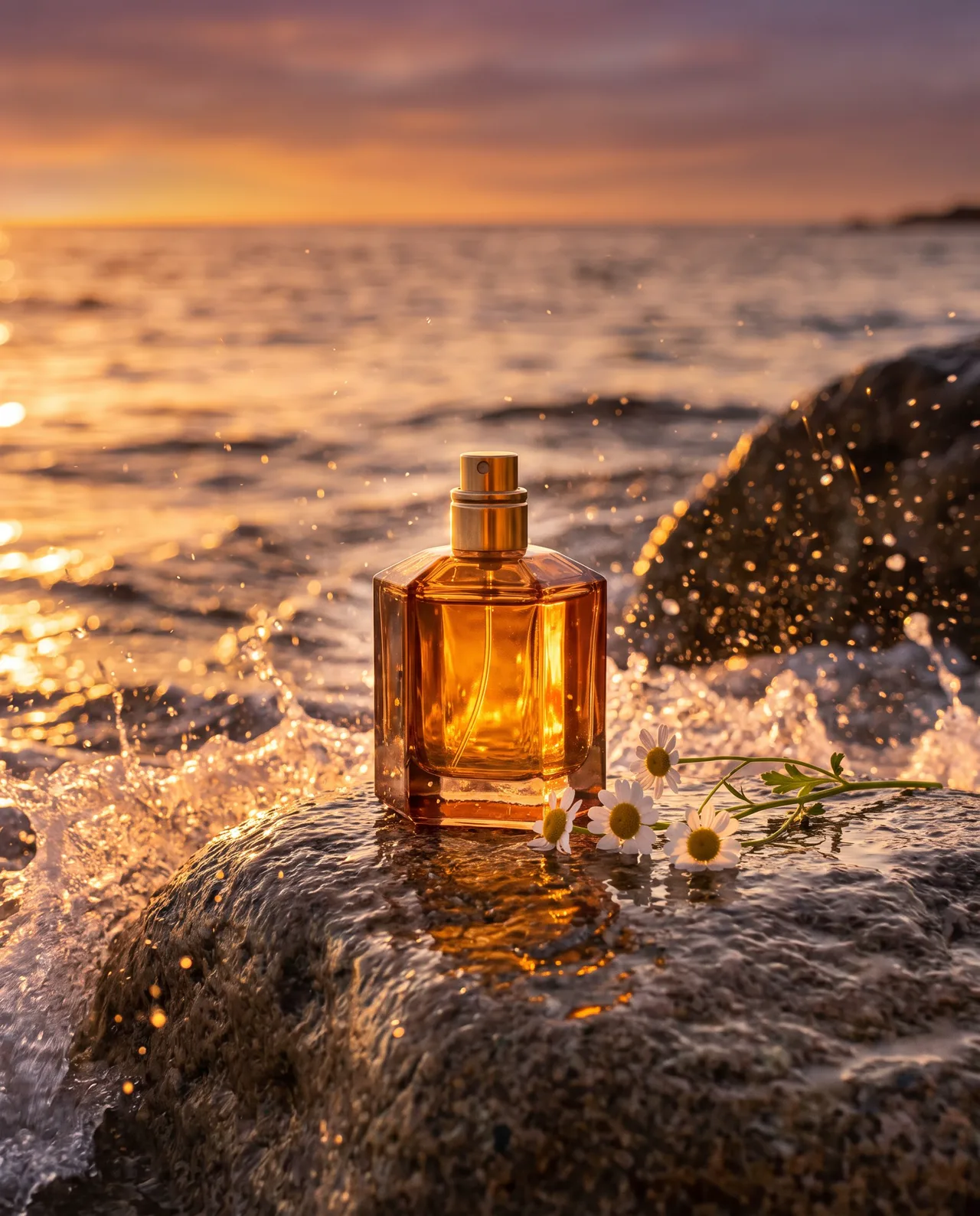
What people use it for
Multi-scene product shots
Start from one clean photo of a product and generate beach, street and at-home scenes for listings, detail pages and ads.
Recurring characters
Put an existing mascot or original character into holiday, travel or office scenes, so one character can carry a whole content series.
Pet portraits
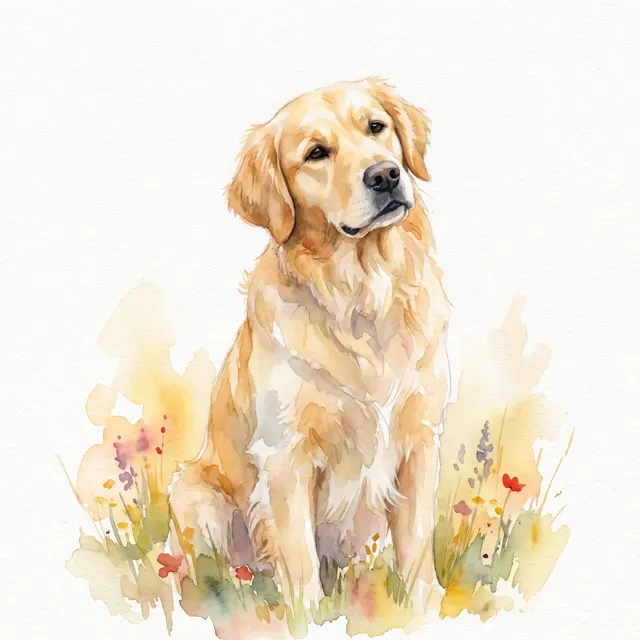
Upload a few clear photos of your pet and see it on a snowy mountain, a beach or a festive set — for avatars, calendars or keepsakes.
Seasonal brand refreshes
Same product, new season: swap in spring, summer or holiday backdrops to produce fresh campaign bases and social images quickly.
How it works
- 01
Upload references
Add 1–4 photos of the same subject — sharp, well lit and centered. A few different angles help the AI keep it consistent.
- 02
Describe the new scene
Say where the subject is, what’s around it and how it’s lit — for example, “on a rock at a sunset beach.”
- 03
Generate and pick
4:5 portrait is preset; change the ratio or count if needed. About 30 seconds per image — keep the one that matches your subject most closely.
Prompt tips
References set the ceiling
Use photos with a simple background, the whole subject in frame and sharp focus. Avoid obstructions, glare and dark shots.
Show more than one angle
A front view, a side view and a detail shot of the same subject help the AI read its shape and material. Don’t mix in other objects.
Put the style in your prompt
With references attached, the image type is ignored, so describe the look directly — e.g. “commercial studio lighting, soft shadows” or “film tones, light grain”.
Spend your words on the scene
The references already define the subject. Use the prompt for setting, props, light and framing: “snowy ground, pine twigs, cold morning light, top-down shot.”
FAQ
Related tools
Shoot it once, change the scene as often as you like
Upload your subject, describe the new scene and see the result in about 30 seconds. New accounts get free trial credits.