The reliable way to make AI product photos is to shoot a few clear phone references, then use image-to-image to generate clean hero shots, lifestyle scenes and feature images. Use text-to-image only for mood and exploration, add copy afterward, and check every detail against the real product.
Which listing images can AI make?
Each image in a listing does a different job, and AI fits some jobs better than others.
| Image slot | Job | Recommended approach | Ratio |
|---|---|---|---|
| Main/hero image | Win the click in search | Image-to-image: real reference, clean backdrop | 1:1 |
| Pure-white image | Required by some marketplaces | Prefer a real cut-out; check any AI version closely | 1:1 |
| Lifestyle scenes | Show the product in use | Image-to-image scene change | 1:1 or 4:5 |
| Feature images | Dramatize one benefit | Image-to-image base, text added later | 1:1 |
| Brand/mood images | Set the tone on product pages | Text-to-image or image-to-image | 4:5 or 16:9 |
| Social posts | Instagram, Xiaohongshu, Pinterest | Image-to-image, vertical framing | 4:5 |
The principle: any image that tells a shopper “this is what you’ll receive” should start from a real reference via image-to-image. Pure text-to-image belongs in images that sell a mood, not a specific item.
Step 1: Shoot references with your phone
The ceiling of an AI product photo is set by the reference. You don’t need a studio:
- Use a white wall or plain tabletop near a window. Avoid direct midday sun.
- Let the product fill at least half the frame, sharply focused, with nothing else in shot.
- Shoot 2–4 angles: front, three-quarter, back or top, and a detail. You can upload up to four references per run.
- Face any printed text toward the camera. Small text is the least reliable part of any generation; clearer references mean fewer errors.
Step 2: Hero shots and lifestyle scenes with image-to-image
Upload the references in image-to-image and describe only the new scene, referring to the product as “this bottle”, “these shoes”, “this box”.
Clean hero shot:
Place this serum bottle on a seamless warm-beige background, straight-on view, soft studio light, a faint reflection on the surface, clean composition, product centered
Lifestyle scene:
Place these running shoes on a city running track at dawn, dew glinting on the ground, low camera angle, side backlight, sports-brand advertising look
Seasonal campaign:
Place this tea gift box on a dark wooden table with a celadon cup and a sprig of plum blossom, soft winter window light, empty space on the left
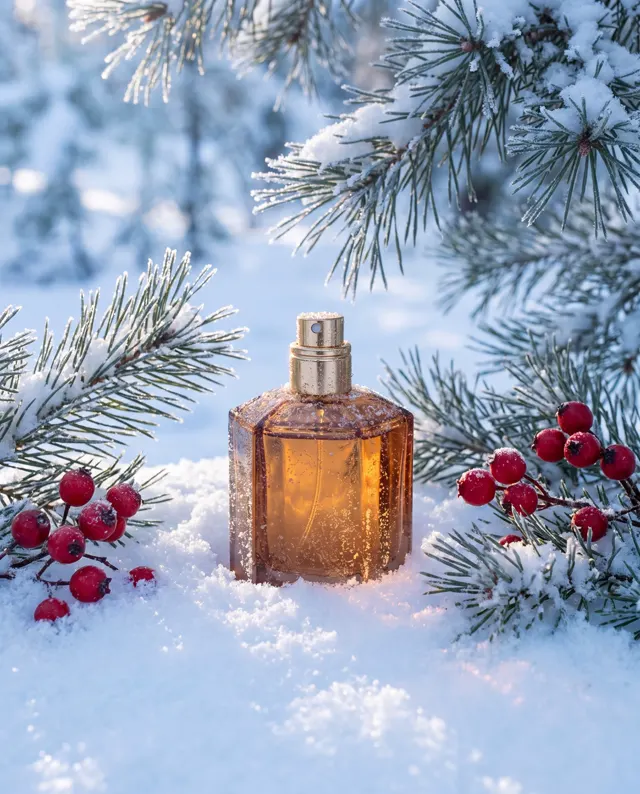
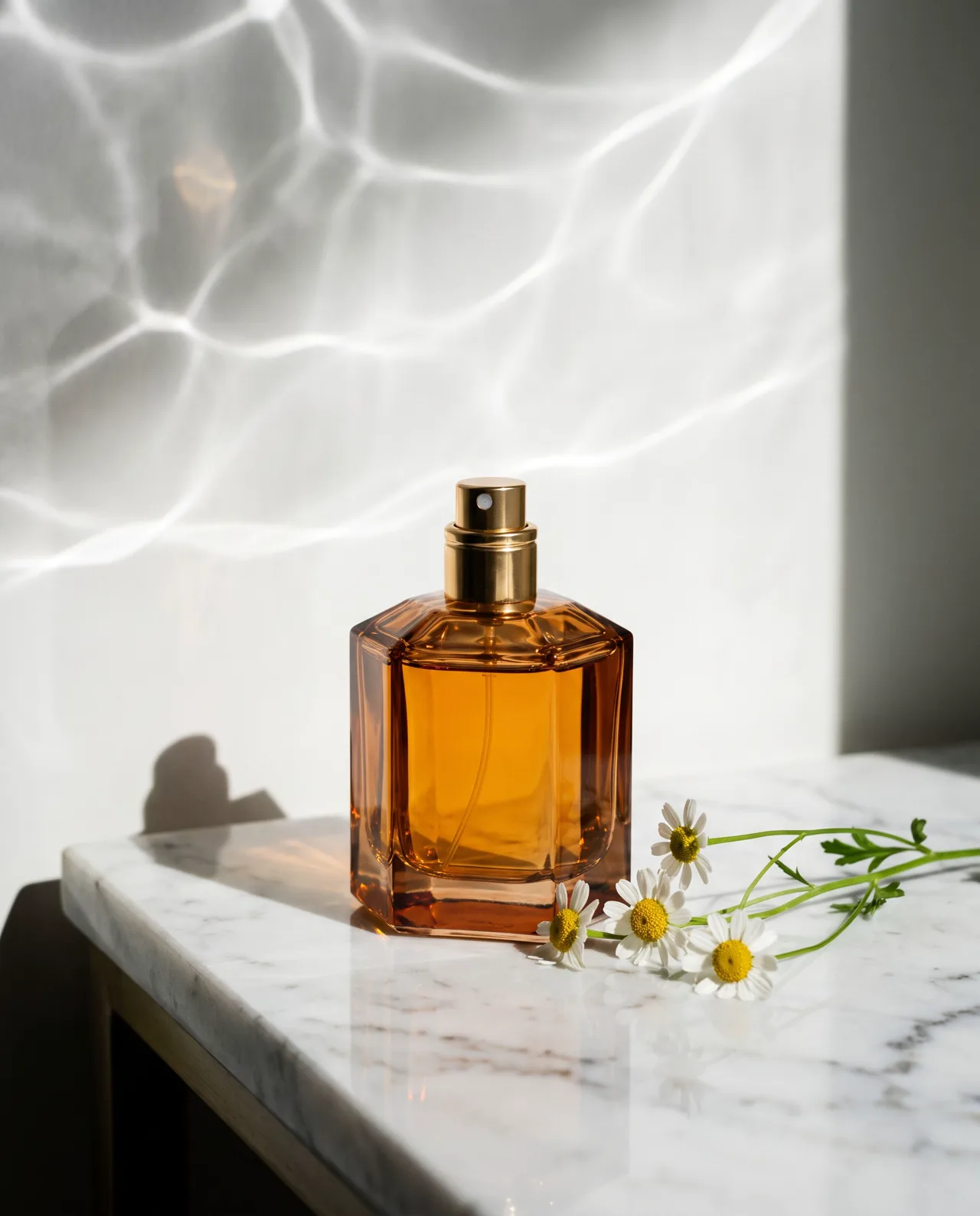
The perfume pair in our gallery follows this exact workflow: a marble version made with text-to-image, then reused as the reference and moved to a sunset beach with one sentence.
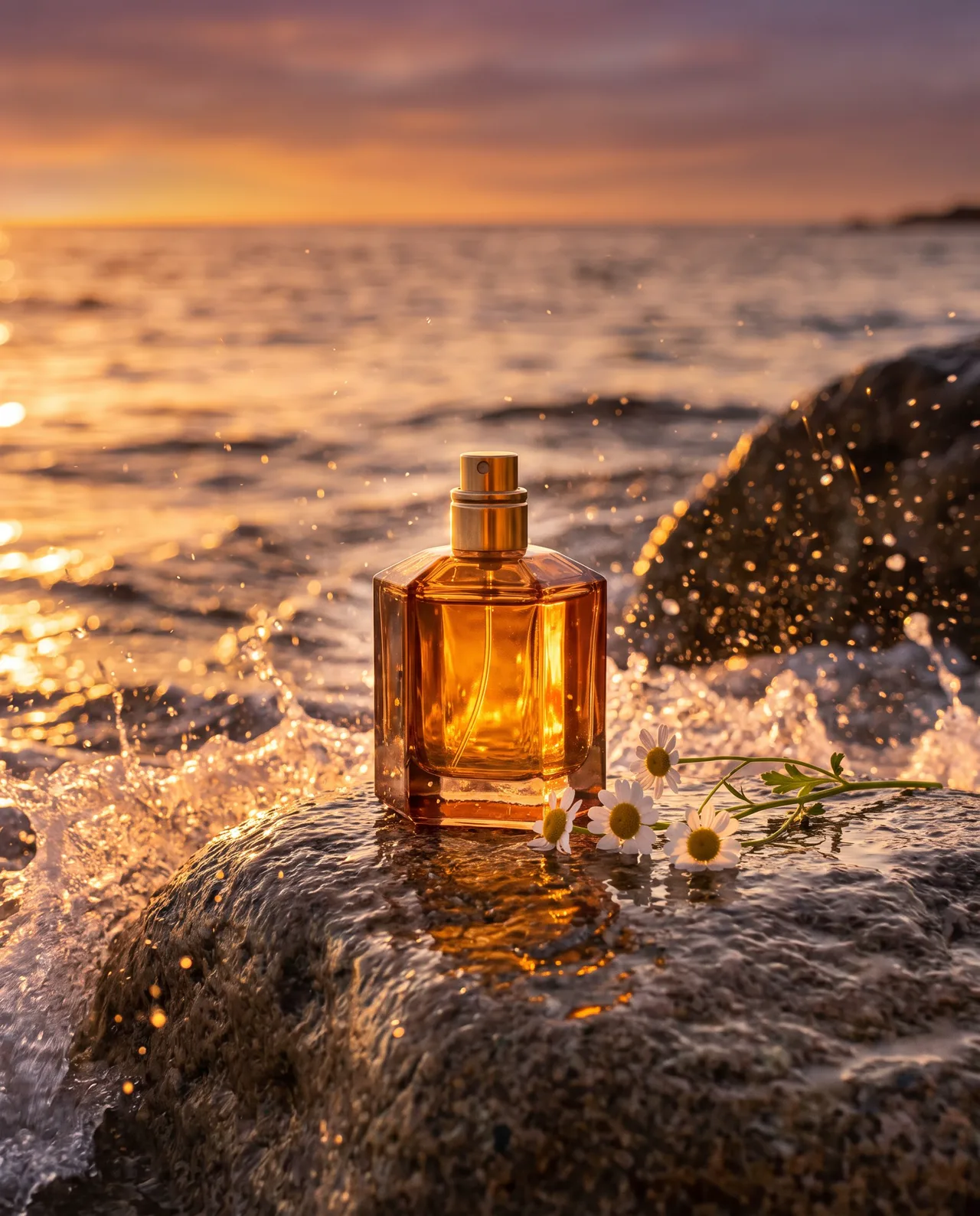
Prompt idea: place this perfume bottle on a seaside rock at sunset, waves and spray, golden backlight. The bottle comes from the reference.
Generate four, keep the one with the most faithful bottle and the most natural light. For the full difference between the two modes, see text-to-image vs image-to-image.
Step 3: Mood images and exploration with text-to-image
A product made by text-to-image is invented — it is not your product, so never present it as one. It is still useful for:
- Choosing a direction before a shoot. Marble luxury or sunlit natural? Generate both and align the team first.
- Brand pages and store banners. Petals, water, light and texture with no specific item.
- Lifestyle content. A skincare-routine flat lay that sells a feeling.
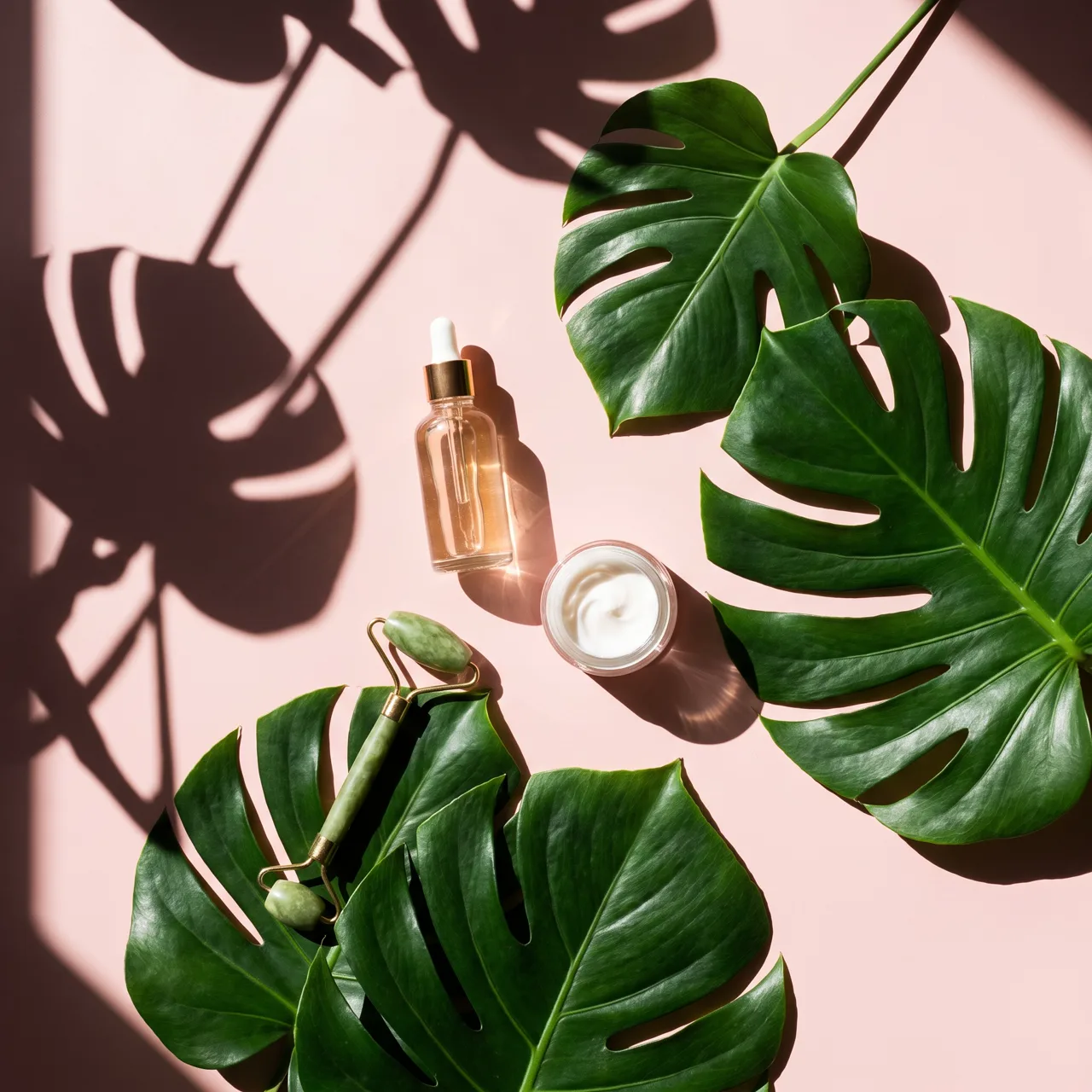
Prompt idea: skincare flat lay on blush pink, green leaves, natural sun shadows, top-down, Product style.
Step 4: Feature images — AI for the visual, design tool for the words
A good feature image dramatizes one benefit: water for water resistance, floating for lightness, steam for heat retention. AI is very good at this kind of heightened realism.
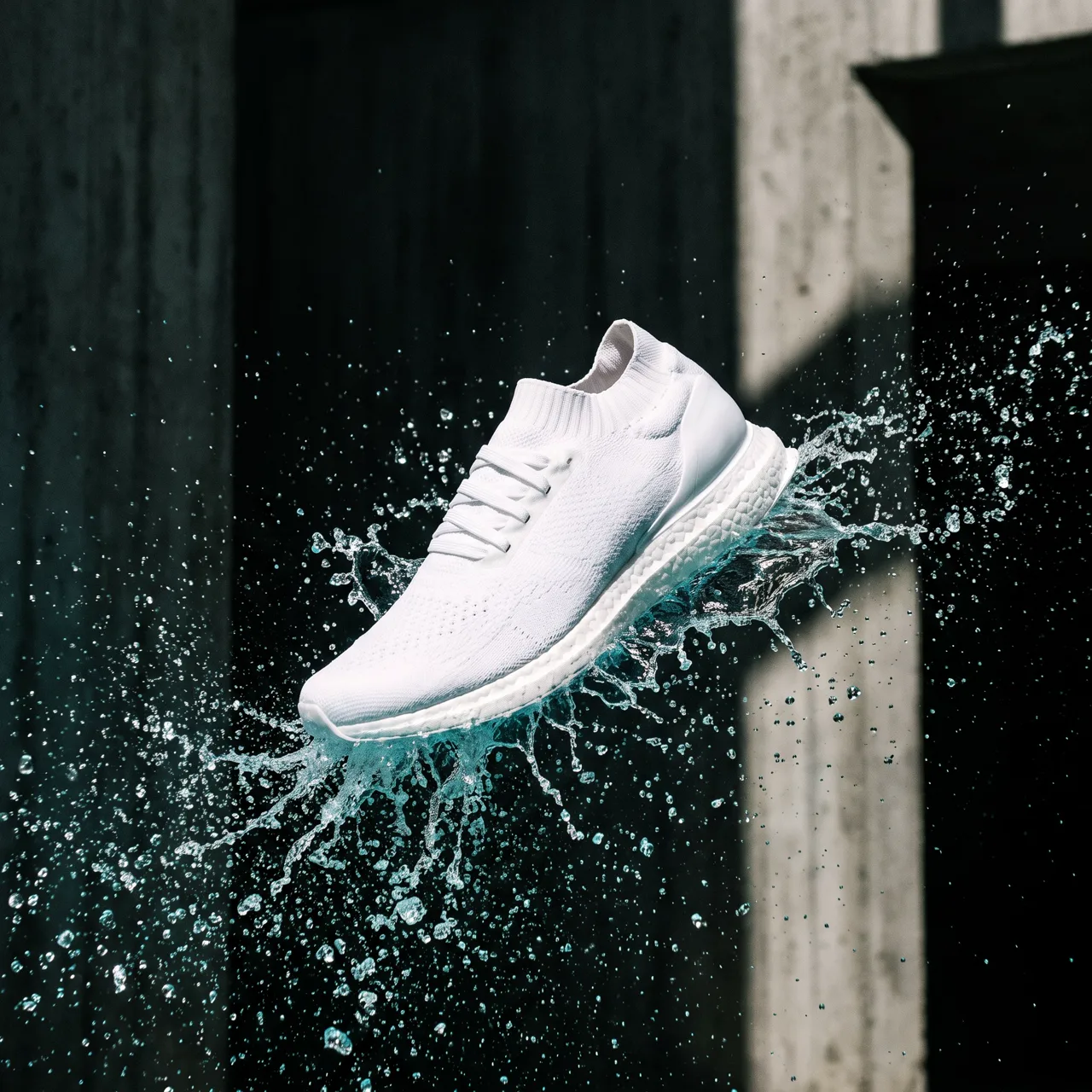
Prompt idea: an unbranded white running shoe bursting through a water splash, with “no stripes, no logos” in the prompt — swap in your own shoe with image-to-image and it becomes the base for a “splash-resistant” feature card.
By default the generator keeps text out of images, which suits product work: add claims, prices and promo badges in your design tool, where fonts and layout are fully under your control and easy to update. Ask for space in the prompt — “empty space on the right” — so the copy has somewhere to go.
Quick prompt reference by category
| Category | Surfaces and settings | Light | Props |
|---|---|---|---|
| Beauty and skincare | Marble, acrylic steps, shallow water | Soft light, water caustics | Petals, leaves, droplets |
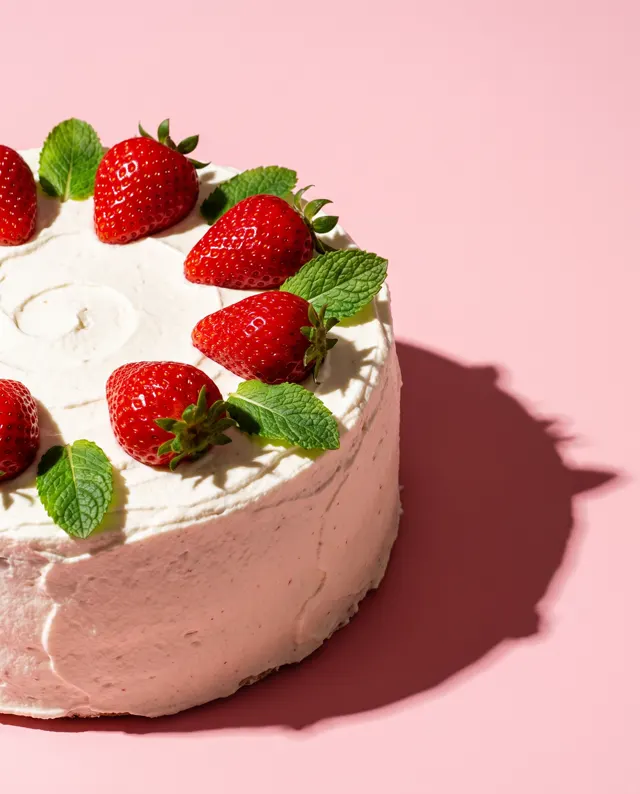
| Food and drink | Wooden table, picnic cloth, kitchen counter | Window light, warm tones | Ingredients, cutlery, steam |
| Tech accessories | Dark desk, workspace setup | Cool rim light | Keyboard, plant, coffee cup |
| Shoes and bags | Street, trail, stone steps | Side backlight, golden hour | Leaves, splashes, city blur |
| Home goods | Living room, bedroom, balcony | Slanting afternoon sun | Cushions, books, plants |
Browse the e-commerce section of the prompt library for more prompts you can copy.
Pre-launch checklist
However good the image looks, check these before it goes live:
- Accuracy: shape, color, material and logo placement match the real item; packaging text hasn’t changed.
- No exaggeration: don’t invent results or inflate size and capacity.
- No infringement: no other brands’ logos, no celebrities or real people’s faces.
- Labeling: follow your platform’s rules on AI-generated content. Our guide to commercial use of AI images covers the details.
Cost and output
Each image costs 10 credits on the standard model or 4–8 on the others and takes about 30 seconds; you can make 1–4 per run, and failures are refunded automatically. Images carry no watermark and are saved in My images for download. Square output goes up to 4K — plenty for listings. Budget roughly six to eight finished images per product and compare against pricing.
The same references can also produce 4:5 social images; see our guide to Xiaohongshu cover sizes for vertical framing tips.